

Keyboard shortcuts
Generated page — every table below is read out of the app’s own source when this site is built. Do not edit this file by hand:
pnpm run checkandpnpm run buildregenerate it and fail when what is committed here disagrees with the source.
Joinery binds 27 of its 58 commands to a keystroke. With the 2 keystrokes that belong to a surface rather than to a command — Command palette and Toggle tab-focus mode — that is 29 rows, the same set the in-app cheat sheet shows under ⇧⌘/.
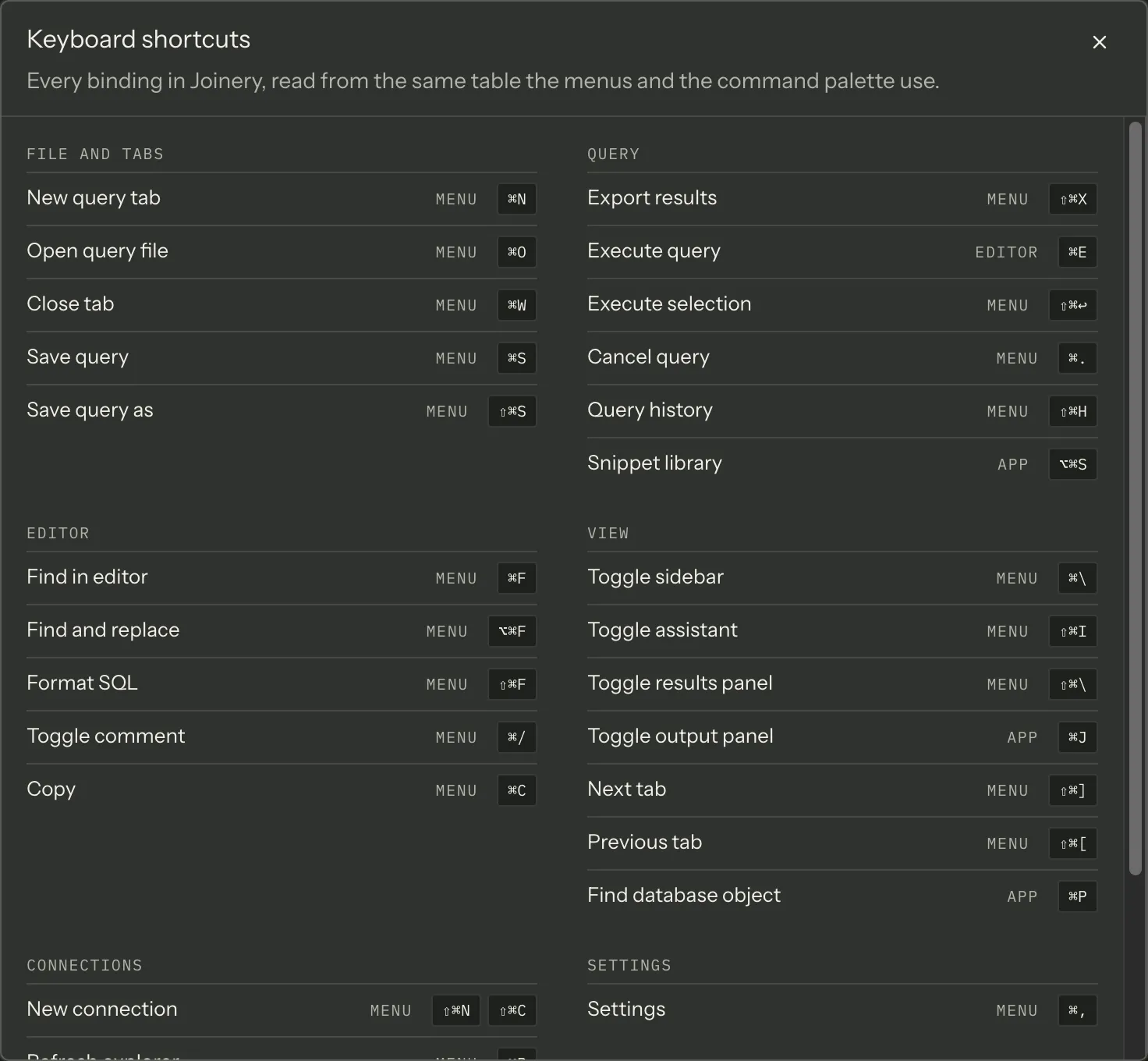
Every binding is listed, not only the primary one: New connection answers to two menu items, and a table that showed one of them would be wrong about the other.
Reading the table
Section titled “Reading the table”The Bound by column is the one that answers “why does this key work here but not there”.
| Bound by | What holds the keystroke |
|---|---|
| Menu | An Electron menu item. The keystroke never reaches the page at all. |
| App | A key listener in the window. It must avoid every registered menu accelerator. |
| Editor | Monaco, and only while the caret is in a SQL editor. Either the menu shows the key without binding it, or no menu item carries it at all. |
The keyboard shortcuts guide explains what follows from that, and why the snippet library is on ⌥⌘S rather than ⇧⌘S.
Every binding
Section titled “Every binding”File and tabs
Section titled “File and tabs”| Keys (macOS) | Keys (Windows) | Command | What it does | Bound by |
|---|---|---|---|---|
⌘N |
Ctrl+N |
New query tab | Open an empty SQL editor on the current database | Menu |
⌘O |
Ctrl+O |
Open query file | Load a .sql file from disk | Menu |
⌘W |
Ctrl+W |
Close tab | Close the tab in front | Menu |
⌘S |
Ctrl+S |
Save query | Write the active editor back to its file | Menu |
⇧⌘S |
Ctrl+Shift+S |
Save query as | Write the active editor to a new file | Menu |
| Keys (macOS) | Keys (Windows) | Command | What it does | Bound by |
|---|---|---|---|---|
⇧⌘X |
Ctrl+Shift+X |
Export results | Write the rows on screen to a file | Menu |
⌘E |
Ctrl+E |
Execute query | Run everything in the active editor | Editor |
⇧⌘↩ |
Ctrl+Shift+E |
Execute selection | Run only the highlighted SQL | Menu |
⌘. |
Alt+Break |
Cancel query | Stop the run in progress | Menu |
⇧⌘H |
Ctrl+Shift+H |
Query history | Search everything this app has executed | Menu |
⌥⌘S |
Ctrl+Alt+S |
Snippet library | Save, search and insert reusable SQL | App |
Editor
Section titled “Editor”| Keys (macOS) | Keys (Windows) | Command | What it does | Bound by |
|---|---|---|---|---|
⌘F |
Ctrl+F |
Find in editor | Open Monaco’s find widget | Menu |
⌥⌘F |
Ctrl+H |
Find and replace | Open Monaco’s replace widget | Menu |
⇧⌘F |
Ctrl+Shift+F |
Format SQL | Re-indent the active editor for its engine | Menu |
⌘/ |
Ctrl+/ |
Toggle comment | Comment or uncomment the selected lines | Menu |
⌘C |
Ctrl+C |
Copy | Copy the selection, or the selected grid cells | Menu |
⌃M |
Ctrl+M |
Toggle tab-focus mode | Switch Tab between indenting and moving focus out of the SQL editor | Editor |
| Keys (macOS) | Keys (Windows) | Command | What it does | Bound by |
|---|---|---|---|---|
⌘\ |
Ctrl+\ |
Toggle sidebar | Show or hide the object explorer | Menu |
⇧⌘I |
Ctrl+Shift+I |
Toggle assistant | Show or hide the AI side panel | Menu |
⇧⌘\ |
Ctrl+Shift+\ |
Toggle results panel | Collapse or restore the rows below the editor | Menu |
⌘J |
Ctrl+J |
Toggle output panel | Show or hide the app’s own log | App |
⇧⌘] |
Ctrl+Tab |
Next tab | Move one tab to the right | Menu |
⇧⌘[ |
Ctrl+Shift+Tab |
Previous tab | Move one tab to the left | Menu |
⌘P |
Ctrl+P |
Find database object | Fuzzy-search tables, views, procedures and functions | App |
Connections
Section titled “Connections”| Keys (macOS) | Keys (Windows) | Command | What it does | Bound by |
|---|---|---|---|---|
⇧⌘N or ⇧⌘C |
Ctrl+Shift+N or Ctrl+Shift+C |
New connection | Set up a new server connection | Menu |
⌘R |
Ctrl+R |
Refresh explorer | Re-read databases and the selected node | Menu |
Settings
Section titled “Settings”| Keys (macOS) | Keys (Windows) | Command | What it does | Bound by |
|---|---|---|---|---|
⌘, |
Ctrl+, |
Settings | Appearance, editor, query and grid preferences | Menu |
| Keys (macOS) | Keys (Windows) | Command | What it does | Bound by |
|---|---|---|---|---|
⇧⌘/ |
Ctrl+Shift+/ |
Keyboard shortcuts | Every binding this app has, in one sheet | Menu |
⌘K or ⇧⌘P |
Ctrl+K or Ctrl+Shift+P |
Command palette | Everything this app can do, by name | App |
On Windows
Section titled “On Windows”Most bindings are the macOS binding with Ctrl in place of ⌘, and ⌥⌘S becomes Ctrl+Alt+S by the
same rule. 5 are a different key entirely — the rows above where the two columns name different
keys rather than the same key in local modifier names.
Note — the Windows column is the key you press. The app writes its accelerators with the
CmdOrCtrlmodifier, which Electron resolves to Control on Windows and Linux and to Command on macOS; the in-app cheat sheet makes the same substitution when it prints a binding, so a key writtenCmdOrCtrl+Nreads there asCtrl+Noff macOS, exactly as it does here.
How this page is generated
Section titled “How this page is generated”docs-site/scripts/generate-reference.mjs reads these files and writes this page:
packages/renderer/src/commands/catalogue.tspackages/renderer/src/features/command-palette/palette-actions.tspackages/renderer/src/utils/platform.tspackages/renderer/src/shell/status-bar.tsx
It does not import the renderer. Each module is compiled with the TypeScript compiler and run inside
an isolated node:vm context whose module resolver is declared up front: the files it may reach are
resolved for real, lucide-react resolves to an inert marker, and anything else throws rather than
pulling the app’s dependency tree into the docs build. The command table is loaded twice, once with
a macOS user agent and once with a Windows one, so both keystroke columns come from the app’s own
formatter rather than from a second table kept here.
Data digest: fd4b0daf65f3 — a fingerprint of exactly the values rendered above. It changes when
what the app ships changes, and not when an unrelated comment in one of those files does.
Regenerate from docs-site/ with pnpm run generate:reference.
Where this page's facts come from
| Claim | Source |
|---|---|
| Every row is derived from the command table and the surface-shortcut list | packages/renderer/src/commands/catalogue.ts:272-803, features/command-palette/palette-actions.ts:121-146 |
| A surface shortcut names what binds it, so ⌃M reads Editor and the palette opener reads App | packages/renderer/src/features/command-palette/palette-actions.ts:105-146, features/shortcuts-dialog/shortcuts-dialog.tsx:95-108 |
| The in-app cheat sheet is ⇧⌘/ and renders the same two lists | packages/renderer/src/features/shortcuts-dialog/shortcuts-dialog.tsx:69-108, 117-125 |
A test compares these accelerators with what menu.ts registers |
packages/renderer/src/commands/catalogue.ts:31-45, commands/catalogue.spec.ts |
| Alternates are real bindings, and New connection has two | packages/renderer/src/commands/catalogue.ts:158-172, 274-283 |
| What Menu, App and Editor mean, and that App bindings must dodge menu accelerators | packages/renderer/src/commands/catalogue.ts:134-157 |
| Keystrokes are formatted by the app’s own formatter, per platform | packages/renderer/src/commands/catalogue.ts:865-914, utils/platform.ts:18 |
| Five bindings name a different key off macOS; the sixth platform-specific one is ⌥⌘S / Ctrl+Alt+S | packages/renderer/src/commands/catalogue.ts:349, 413, 421, 574, 582 and :639 |
The non-macOS branch prints Ctrl for CmdOrCtrl, CommandOrControl and Control; bare Cmd is left alone, being macOS-only |
packages/renderer/src/commands/catalogue.ts:852-863, 884-891 |
Electron maps CmdOrCtrl to Command on macOS and Control elsewhere |
Electron accelerator reference |