

AI setup
Nothing AI-shaped in Joinery works until one provider has an API key and is switched on. This is the dialog that does it.
Opening it
Section titled “Opening it”| Where |
|---|
| The Joinery menu ▸ AI Setup… — macOS only |
| The Edit menu ▸ AI Setup…, beside Preferences — Windows and Linux |
| ⌘K ▸ Set up AI |
| The settings dialog (⌘,) ▸ AI ▸ Open AI setup |
| The assistant’s empty state ▸ Set up AI |
It has no keyboard shortcut of its own — it is a rarely repeated configuration step, and the palette already covers the keyboard.
Providers
Section titled “Providers”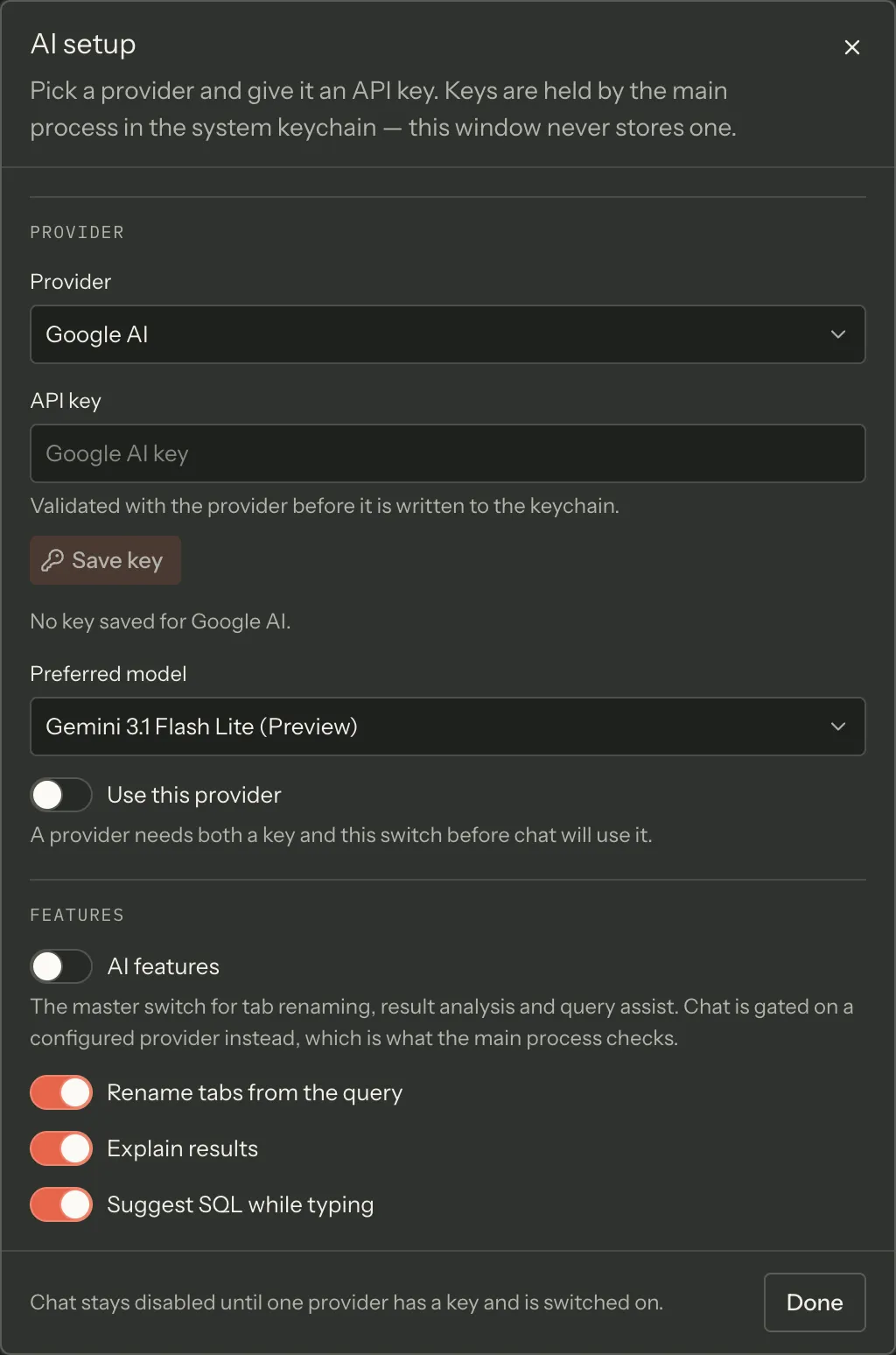
The Provider picker lists every vendor in the build’s own vendor catalogue, so the app can never fall behind the file. Today that is Google AI, Anthropic, OpenAI, Groq, Cerebras and OpenRouter.
The dialog opens on the first provider that already has a key, and on the first in the catalogue otherwise.
The API key
Section titled “The API key”Type the key and press Save key.
The key is validated with the provider before it is written, so a typo never lands in the keychain. A key the provider rejects is reported in place — That key was rejected by … — and nothing is saved.
Once saved:
- the field is cleared immediately;
- the line beneath it reads … has a key in the keychain;
- a Remove key button appears;
- the master AI features switch is turned on;
- the vendor is switched on, if it had no entry before.
Note — the key is held by the operating system, not by Joinery. It goes to the main process, which writes it into the macOS Keychain (or the Windows Credential Store) through
keytar. This window never stores it: no file, nolocalStorage, no cache entry, no log line. All the renderer ever holds is a boolean saying a key exists.
Remove key deletes it from the keychain and clears that boolean. It does not switch the vendor off.
Where to get a key is per provider — each vendor in the catalogue carries its own key page.
Because the key lives in the keychain, a key that will not save — or that stops being found between launches — is a keychain problem rather than a provider one: Credential and keychain problems has the symptoms and what to check.
Preferred model
Section titled “Preferred model”Preferred model picks which of that vendor’s models Joinery reaches for by default. Left alone, the vendor’s own default model is used.
This is the vendor’s default. The assistant’s composer can still pin a different model for a single message — see AI assistant.
Use this provider
Section titled “Use this provider”A switch. A provider needs both a key and this switch before chat will use it — that is the same test the main process makes before it looks for a key, so the dialog cannot promise a provider that would be skipped.
The footer says which state you are in: The assistant is ready to use, or Chat stays disabled until one provider has a key and is switched on.
The auto-router cost tier
Section titled “The auto-router cost tier”OpenRouter offers two auto-router models — openrouter/auto and openrouter/auto-beta — which
choose a model for you. The Auto-router cost tier picker tells OpenRouter which band to choose
from:
- Provider default — send no preference, and OpenRouter picks the band itself
- Low — cheapest models
- Medium
- High
- Very high
- Max — most capable models
The picker appears only for a vendor whose catalogue contains an auto-router, which today means OpenRouter alone. It applies to nothing else that vendor offers.
Provider default is a distinct instruction rather than a synonym for the cheapest band — Joinery sends no preference at all and OpenRouter decides. Joinery’s own note on that choice records that OpenRouter then routes roughly as if the low band had been asked for, so the two are close in practice without being the same instruction.
The setting is per vendor, and it is the same setting the assistant’s composer shows beside a pinned auto-router. Change it in either place and it changes in both; the main process reads the one field either way.
AI features
Section titled “AI features”AI features is the master switch for the three one-shot features:
- Rename tabs from the query — a query tab is renamed from the SQL you ran.
- Explain results — a result set can be explained.
- Suggest SQL while typing — completions in the query editor.
Note — chat is not gated on this switch. The assistant is gated on a configured provider — a vendor with a key that is switched on — which is what the main process checks. Turning AI features off leaves chat working and turns the three above off.
Where this page's facts come from
| Claim | Source |
|---|---|
| The macOS app menu’s “AI Setup…”, beside Settings… | packages/main/src/menu.ts:14-38 |
| The second copy in the Edit menu, beside Preferences… | packages/main/src/menu.ts:123, 186-202 |
Both send menu:open-ai-setup, which dispatches open-ai-setup |
packages/renderer/src/shell/menu-bridge.tsx:100 |
| The palette entry “Set up AI”, with no accelerator | packages/renderer/src/commands/catalogue.ts:605-613 |
| The settings dialog’s AI group carries “Open AI setup” | packages/renderer/src/features/settings/settings-groups.tsx:530-540, settings-dialog.tsx:113 |
| The assistant’s empty state carries a “Set up AI” button | packages/renderer/src/features/chat/chat-transcript.tsx:72-81 |
| The provider list comes from the vendor catalogue, not the code | packages/renderer/src/features/ai-setup/ai-setup-dialog.tsx:27-33, 219-229 |
| The six vendors, and each one’s own key page | packages/shared/src/config/ai-vendors.json |
| It opens on the first configured vendor, else the first listed | packages/renderer/src/features/ai-setup/ai-setup-dialog.tsx:145-157 |
| The key is validated before it is saved | packages/renderer/src/state/ai.ts:139-149 |
| A rejected key is reported in place, and nothing is saved | packages/renderer/src/features/ai-setup/ai-setup-dialog.tsx:180-193, 286-292 |
| The field is cleared before anything else awaits | packages/renderer/src/features/ai-setup/ai-setup-dialog.tsx:186-192 |
| Saving turns the master switch on | packages/renderer/src/features/ai-setup/ai-setup-dialog.tsx:190-192 |
| A vendor with no entry is created switched on | packages/renderer/src/state/ai.ts:151-156, packages/main/src/services/ai/ai-service.ts:140-150 |
| “… has a key in the keychain” and “No key saved for …” | packages/renderer/src/features/ai-setup/ai-setup-dialog.tsx:293-306 |
| The key is written to the OS keychain through keytar | packages/main/src/services/ai/ai-service.ts:136-139, services/keychain/credential-store.ts:6, 13, 105 |
| The renderer never stores the key — only a boolean | packages/renderer/src/state/ai.ts:10-11, features/ai-setup/ai-setup-dialog.tsx:8-25 |
| Remove key deletes it and clears the boolean | packages/main/src/services/ai/ai-service.ts:154-163 |
| The preferred-model picker and its “Provider default” placeholder | packages/renderer/src/features/ai-setup/ai-setup-dialog.tsx:309-324 |
| The vendor’s own default model is used when none is chosen | packages/renderer/src/features/ai-setup/ai-setup-dialog.tsx:84-87, 170-172 |
| “Use this provider”, and that both a key and the switch are needed | packages/renderer/src/features/ai-setup/ai-setup-dialog.tsx:326-338 |
| The footer’s two sentences | packages/renderer/src/features/ai-setup/ai-setup-dialog.tsx:357-369 |
| The two auto-router model names | packages/shared/src/types/ai.types.ts:42-57 |
| The six cost-tier options and their labels | packages/shared/src/types/ai.types.ts:21-40, features/ai-setup/ai-setup-dialog.tsx:119-135 |
| The picker only renders for a vendor with an auto-router | packages/renderer/src/features/ai-setup/ai-setup-dialog.tsx:94-101, 326 |
| “Provider default” is a distinct instruction, and what OpenRouter does with it | packages/renderer/src/features/ai-setup/ai-setup-dialog.tsx:103-107, 126 |
| It is the same per-vendor field the composer edits | packages/renderer/src/features/chat/chat-composer.tsx:130-138, packages/main/src/services/ai/ai-service.ts:63-72 |
| The master switch gates the three one-shot features | packages/renderer/src/features/ai-setup/ai-setup-dialog.tsx:341-352, 376-407 |
| Chat is gated on a configured provider instead | packages/renderer/src/features/ai-setup/ai-setup-dialog.tsx:346-348, features/chat/chat-transcript.tsx:16-23 |