

A tour of the workspace
The window has five regions. Every other page in these docs uses their names, so this is the page to skim first.
┌──────────────────────────────────────────────────────────┐│ Titlebar │├───────────┬───────────────────────────────┬──────────────┤│ │ │ ││ Sidebar │ Workspace │ Assistant ││ │ (tabs, splits, results) │ panel ││ │ │ │├───────────┴───────────────────────────────┴──────────────┤│ Status bar │└──────────────────────────────────────────────────────────┘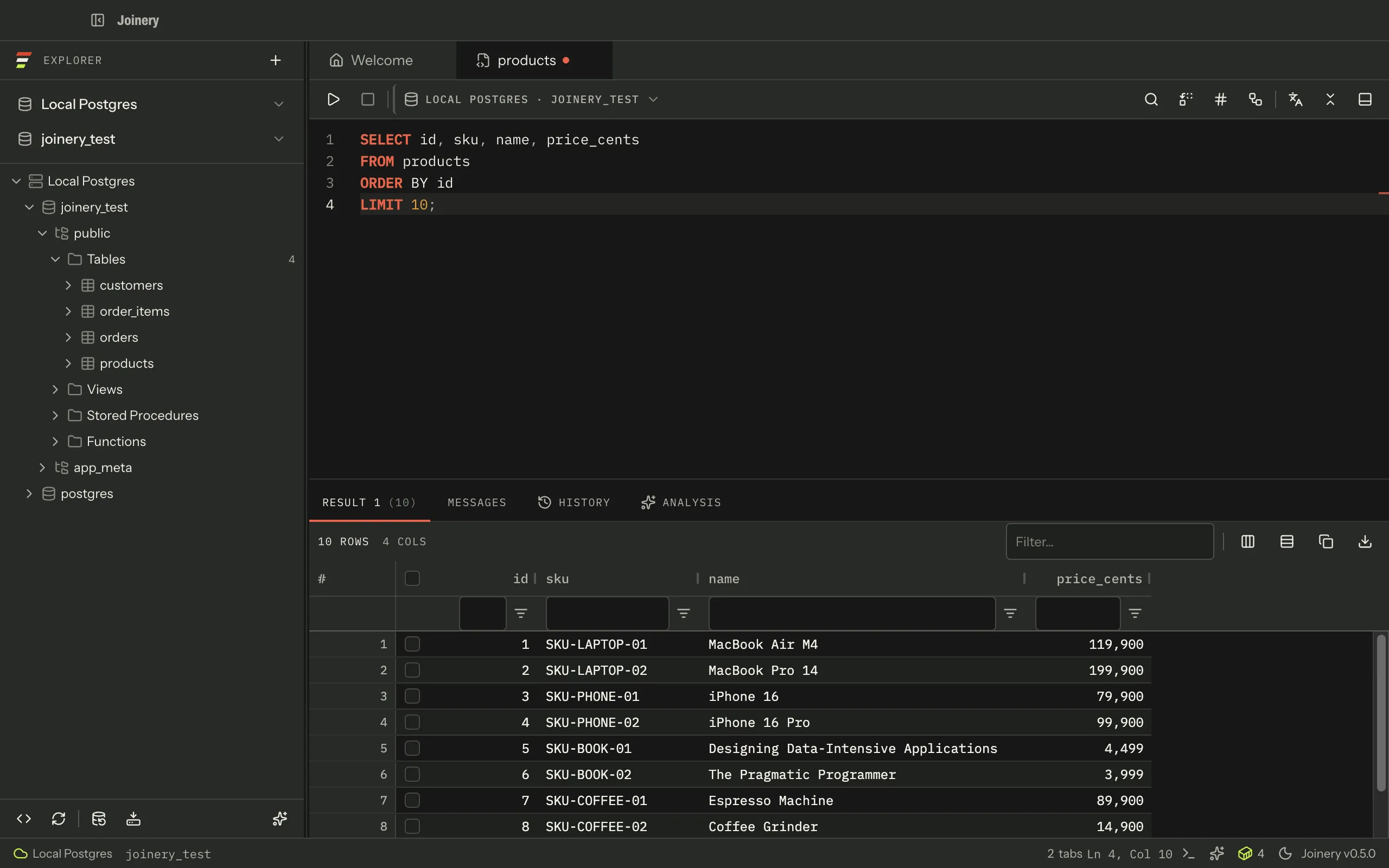
The sidebar
Section titled “The sidebar”Labelled Explorer. Top to bottom:
- a header with the Joinery mark and a + for a new connection;
- the connection picker and the database picker;
- the explorer tree — servers, databases, schemas, tables, views, stored procedures and functions, loaded on demand as you expand. Double-click an object to open it; right-click for everything else;
- an action strip: New query, Refresh the explorer, Back up a database, Restore a database, and a toggle for the assistant. Backup and restore are disabled until the active connection is one whose engine supports them.
⌘\ hides and shows the sidebar. The divider between it and the workspace is draggable, and the width persists.
The workspace
Section titled “The workspace”The middle region is a dock, not a tab strip. Tabs can be dragged into splits and stacks, and the arrangement is saved and restored. Six kinds of tab live here:
| Tab | What it is |
|---|---|
| Welcome | The first-run tab |
| Query | A Monaco SQL editor with its results below |
| Results | A detached result set |
| Object | A table, view, procedure or function’s details |
| ERD | A relationship diagram |
| Chat | The assistant, opened as a tab rather than as a side panel |
Every query tab carries its own connection context, so two tabs open against two servers stay that way.
Running SQL
Section titled “Running SQL”Three keystrokes run the active editor, and the difference between them is worth knowing:
| Keys | What runs |
|---|---|
| ⌘E | What Settings ▸ Query ▸ Execute scope selects, with a one-time confirmation the first time |
| ⌘↩ or F5 | The same scope, with no one-time confirmation |
| ⇧⌘↩ | The current selection only. With nothing selected it refuses rather than running the buffer |
Execute scope ships as The whole editor; the other option is The statement at the caret. Separately, Settings ▸ Query ▸ Confirm before executing makes every one of those paths ask first.
⌘. cancels a run in progress.
Results
Section titled “Results”Results appear under the editor in the same tab, in a resizable pane. ⇧⌘\ hides and shows it.
The output panel
Section titled “The output panel”Every statement Joinery runs on your behalf is logged here with its SQL — the panel is the answer to “what did that button actually do”. It has a Log / Errors filter with live counts, a button that reveals the log file on disk, and a button that clears the panel.
⌘J opens and closes it. The status bar’s terminal icon does the same, and shows a count when there are errors you have not looked at.
The assistant
Section titled “The assistant”The AI assistant is a panel on the right, toggled with ⇧⌘I, from the status bar’s sparkle icon, or from the sidebar’s action strip. Its width persists. It can also be opened as a tab in the workspace instead — Open assistant as a tab in the command palette.
The assistant does nothing until a provider key is configured; see First run.
The status bar
Section titled “The status bar”Left to right: the active connection, then on the right the open-tab count, the caret’s line and column while a query editor is focused, the output toggle, the assistant toggle, the Docker container control, the theme menu, and the app version. A connection with a colour tag paints a thin strip in its colour along the top of the bar.
One more item appears only when something is wrong: an amber Keychain unavailable button, ahead of the tab count, when the OS credential store has refused Joinery and passwords will not be saved this session. Credential and keychain problems explains it.
Finding things without the mouse
Section titled “Finding things without the mouse”| Keys | |
|---|---|
| ⌘K, or ⇧⌘P | Command palette — fuzzy search over every command |
| ⌘P | Find a database object — fuzzy search over tables, views, procedures and functions |
| ⇧⌘/ | The keyboard-shortcut cheat sheet |
| ⌘, | Settings |
| ⌘\ | Toggle the sidebar |
| ⇧⌘\ | Toggle the results panel |
| ⌘J | Toggle the output panel |
| ⇧⌘I | Toggle the assistant |
| ⌘N | New query tab |
| ⇧⌘H | Query history |
On Windows, Ctrl replaces ⌘ for most of these — but not all of them. Six commands carry a binding written per platform, and five of those are a genuinely different key: Execute selection (Ctrl+Shift+E), Find and replace (Ctrl+H), Cancel query (Alt+Break) and the two tab-switching ones. The sixth, the snippet library, is the same S with each platform’s own modifier names. The in-app cheat sheet (⇧⌘/) always shows the bindings for the platform you are on; all six are listed on Keyboard shortcuts.
Ink and ivory
Section titled “Ink and ivory”Joinery’s default canvas is Ink, the dark one. The status bar’s theme menu offers Ink, Ivory and System. These docs follow the same default.
Where this page's facts come from
| Claim | Source |
|---|---|
| Region layout: titlebar, sidebar, workspace, chat panel, status bar | packages/renderer/src/shell/app-shell.tsx:206-260 |
| Sidebar header, pickers, tree, action strip, and the disabled conditions | packages/renderer/src/shell/sidebar/sidebar.tsx:105-229 |
| The explorer tree is lazy-loaded; double-click opens, right-click for the rest | packages/renderer/src/features/onboarding/tours.ts:42-48, README.md:103-105 |
| ⌘\ toggles the sidebar; the divider is draggable and the width persists | packages/renderer/src/commands/catalogue.ts:525-530, packages/renderer/src/shell/app-shell.tsx:223-232 |
| The workspace is Dockview; tabs split and stack; the arrangement is persisted | packages/renderer/src/shell/workspace/workspace.tsx:2-37, 122-140, packages/renderer/src/persistence/layout.ts:99-135 |
| The six tab types | packages/renderer/src/shell/workspace/tab-icons.ts:33-40 |
| Per-tab connection context | README.md:58 |
| ⌘E is bound by Monaco and goes through the one-time gate | packages/renderer/src/editor/sql-editor.tsx:345-349, packages/renderer/src/features/query/query-panel.tsx:216-227 |
| ⌘↩ and F5 are ungated | packages/renderer/src/editor/sql-editor.tsx:350-356, query-panel.tsx:161-168 |
| ⇧⌘↩ runs the selection and refuses when there is none | packages/renderer/src/commands/catalogue.ts:408-415, query-panel.tsx:170-181 |
Execute scope options and the all default |
packages/renderer/src/features/settings/settings-groups.tsx:293-294, packages/shared/src/types/settings.types.ts:70 |
confirmBeforeExecute applies to every execute path |
packages/renderer/src/features/query/query-panel.tsx:163-166, 218-221 |
| ⌘. cancels | packages/renderer/src/commands/catalogue.ts:416-424 |
| ⇧⌘\ toggles the results panel | packages/renderer/src/commands/catalogue.ts:551-556 |
| Output panel: Log/Errors filter with counts, reveal-file, clear | packages/renderer/src/shell/workspace/output-panel.tsx:179-229 |
| ⌘J toggles it; the status-bar control mirrors it and badges unseen errors | packages/renderer/src/commands/catalogue.ts:559-565, packages/renderer/src/shell/status-bar.tsx:372-393 |
| The assistant: ⇧⌘I, status-bar sparkle, sidebar toggle, persisted width, and the tab variant | packages/renderer/src/commands/catalogue.ts:533-547, packages/renderer/src/shell/status-bar.tsx:395-408, packages/renderer/src/shell/sidebar/sidebar.tsx:216-227, packages/renderer/src/shell/app-shell.tsx:238-256 |
| Status-bar contents, in order | packages/renderer/src/shell/status-bar.tsx:329-424 |
| The connection colour strip | packages/renderer/src/shell/status-bar.tsx:337-347 |
| The keychain item renders only while degraded, ahead of the tab count | packages/renderer/src/shell/status-bar.tsx:269-295, 355-361 |
| ⌘K / ⇧⌘P, ⌘P, ⇧⌘/, ⌘,, ⌘N, ⇧⌘H | packages/renderer/src/features/command-palette/command-palette.tsx:79-90, packages/renderer/src/commands/catalogue.ts:284-289, 425-430, 587-592, 614-628 |
| Ink is the default theme, with Ink / Ivory / System offered | packages/renderer/src/features/settings/settings-groups.tsx:76-78 |
| Six commands carry a per-platform binding | packages/renderer/src/commands/catalogue.ts:349, 413, 421, 574, 582, 639 |
| Five of those six are a genuinely different key | packages/renderer/src/commands/catalogue.ts:349, 413, 421, 574, 582 |
The sixth is the same key: snippet library, Cmd+Option+S / Ctrl+Alt+S |
packages/renderer/src/commands/catalogue.ts:639 |
| The cheat sheet formats accelerators for the running platform | packages/renderer/src/commands/catalogue.ts:853-885 |
| The chat panel’s width persists | README.md:125 |